My New Experience Getting ColdFusion Builder 2 Console Working

I have ColdFusion 9 Developer Edition installed on my Windows 7 machine running IIS7. Normally my ColdFusion 9 Application Server service starts automatically for me.

Recently I have started learning and developing with ORM. Because of this, I need to figure out what ORM is asking the SQL server to make sure it’s not doing anything crazy.

To do this I turned on logsql in ormSettings config in application.cfc. Then found that it would log to a file or the Console view.

But alas, nothing showed in my Console view, and yep, I did have a server configured in the Servers view.

So I find out that I need to stop/start the server in the servers view to get this working. After trying that it pretty much lied to me and said it did when it really didn’t.

At that point I stopped the service in the Windows service and tried to start from ColdFusion Builder. No such luck.

Then I tried restarting ColdFusion Builder w/ Administrator rights. BAM – now I can get the CF service started.

But I notice something interesting. The service in the Windows Service Manager still shows stopped after a refresh. But alas my Console works perfectly.

So I have no idea what is going on, but this is what I figure needs to happen to get this all working correctly:

  1. Change the ColdFusion 9 Application Server properties of startup type to manual and stop the service.
  2. Close ColdFusion Builder if already open and start it as Administrator (right click icon and select Run As Administrator)
  3. In the Servers View in ColdFusion Builder, edit your server config and auto start and stop the CF Server. (optional but recommended… If you close CF Builder, you will need to restart the server anyway)
  4. Select your server and click the green run arrow.
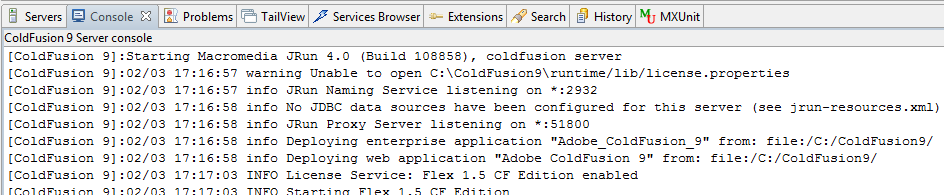
  5. You should see ColdFusion startup with a bunch of output in the Console at this point.
At this point I would suggest modifying your shortcut to always run as administrator. This has gotten me many times already, so I finally made this change.
  1. Right click shortcut and select properties
  2. Click Advanced button
  3. Turn on “Run as administrator”
  4. OK > OK

What a mess! Needs to be a slicker way of getting this rolling without an hour of research and messing with Administrator rights. But hope this helps my memory and anyone else scratching their head!

#orm

“Stuff” Silicon Valley Says

Just had to post this …

Stop PROTECT IP / SOPA

Tomorrow many sites like Wikipedia, MoveOn, Reddit, BoingBoing, Mozilla, WordPress, TwitPic and the ICanHasCheezBurger network will be going dark for a day to protest SOPA and PIPA.

If you don’t know what this all means, “Fight For The Future” says it well:

“PROTECT-IP is a bill that has been introduced in the Senate and the House and is moving quickly through Congress. It gives the government and corporations the ability to censor the net, in the name of protecting “creativity”. The law would let the government or corporations censor entire sites– they just have to convince a judge that the site is “dedicated to copyright infringement.”

The government has already wrongly shut down sites without any recourse to the site owner. Under this bill, sharing a video with anything copyrighted in it, or what sites like Youtube and Twitter do, would be considered illegal behavior according to this bill.

According to the Congressional Budget Office, this bill would cost us $47 million tax dollars a year — that’s for a fix that won’t work, disrupts the internet, stifles innovation, shuts out diverse voices, and censors the internet. This bill is bad for creativity and does not protect your rights.”

Check out this video to get a better understanding:

#pipa, #sopa

Two Spaces or One Space?

Learning to type during grade-school and high-school, it was usually taught to place two spaces after each sentence. They never explained why other than “that’s how it’s done”. Which is one fact I always hated about school. They always said this is what it is but rarely ever why.

Here’s the why: Manual typewriters used what is called “monospaced type”. Every character occupied an equal amount of horizontal space. This “type” created a lot of white space in between characters which made it difficult to spot the spaces between sentences quickly. Thus two spaces made text easier to read.

But then came the electric typewriters in the 1970’s. These new found pieces of technology started using proportional fonts instead of monospaced fonts. The computer era also used proportional fonts both on the screen and the printer.

According to typographers, the double space is no longer needed.

So, not even being a thought in my parents head in 1970, why did schooling decide that double spacing was still needed some 15+ years later?

In the modern age of the web, it’s actually impossible to add more than one space between characters or objects without using a non-breaking space code. Now who’s going to do that and why?

If you are ever at the dinner table, smoking your pipe, and which to bring up a dull and boring subject; ask the attendees “single space or double space?”. And if you ever send me double spaced sentences, you’re just wasting my space, even though the APA Style Guide would disagree with me.

#monospaced-fonts, #proportional-fonts

Phone Finger Heatmap

After reading an article today on making your iPhone more secure by adding a duplicate digit to your lock code, I though that perhaps I should look at my fingers’ tell-tale signs. The article describes how that someone could potentially look at your finger residue and determine which digits you use to unlock your phone, thus eliminating much of the guesswork to hack in.

While it appears I’m safe from this type of finger press detection, at least at this moment, I did find it interesting to find that I do leave tell-tale signs on how I most often interact with the phone.

The top section has mostly down-swipe strokes. This would be bringing down the notifications area.

The mid-top section is mostly untouched.

The mid-bottom section mostly consists of right-swipe strokes. This would probably be moving forward through news and social updates.

The bottom section consists individual presses. Most likely from using the virtual keyboard and app icons.

The search and back permanent buttons are the most used where as the home button is used a little and the menu button is rarely used.

I’d have to say most of these impressions came from my right thumb. I wonder if there’s any long-term effects to my poor thumb leaving all its skin oil behind and all that dragging?

Anyway, this natural heat-map methodology is kind of gross. Time to clean the screen.

Outlook Takes Many Attempts To Actually Close

The issue:

For a long time, way too long, I would randomly find that Microsoft Outlook would stay open, minimized in my notification area (I have “Hide When Minimized” enabled). This would lead to frustration after finding out that all my mail was still being downloaded to the client overnight while trying to see new mail via my mobile devices. It would also lead me to curse Microsoft for thinking that Outlook was so great it didn’t need to close.

But alas, for unknown reasons to me, if you run the Outlook program again via a shortcut, instead of the task-bar or notification area icon, it will open a new “window”. To me, all this looks like is the window opened back up for me.

The way I figured out that, what I call, multiple instances where open was clicking the notification area icon and seeing a list of open Outlooks. Each “instance” would need to be closed. How frustrating!

For reference I am using Outlook 2010, but I think this dates back to 2007. It’s technically not another instance due to the fact that only one Outlook.exe is running at a given time. Microsoft just calls these a new window.

To only allow one Outlook “instance” to be open at a given time, add the “/recycle” switch to the target path.

Simple, right? Nada. Now why would that be simple?

If you open the properties of the “Microsoft Outlook 2010” shortcut in Windows 7, you will find that the target value is greyed out with the value of “Microsoft Office Professional Plus 2010” or whatever version you have installed.

I tried looking for a workaround for a few minutes but found none directly related to modifying this particular shortcut.

The Fix:

What I had to do was go to the path, in my case “C:\Program Files (x86)\Microsoft Office\Office14\”, and create a new shortcut to Outlook. I then appended the “/recycle” switch to the now enabled Target value in the properties window and “pinned” it to my start menu, removing the other one.

This new shortcut will now allow you to close the Outlook program without frustration or insanity.

#microsoft-office-professional

Easy Hosts File Editing

I update my host file a lot due to many VPN connections and locations I commute to.

Normally I would have to open notepad as an administrator, hope the etc path is still remembered, if not traverse those multiple directories, change the file types to any, open hosts, modify, save and close.

But I finally thought of a way to same me some time by creating a simple shortcut on my desktop.

  1. Create a new shortcut
  2. Update the Target property to “%windir%\system32\notepad.exe C:\Windows\System32\drivers\etc\hosts”
  3. Rename the shortcut to something like “Edit Hosts File”

Now each time just run the shortcut as the administrator and no having to track down the hosts file anymore.

jQuery Galleriffic Plugin History Update

Using the Galleriffic version 2.0.1 you will find it incompatible with the 2010-09-11 jQuery History plugin. It currently only works with the 2009 history plugin version.

When you insert the pageload function and its calls into your HTML, update it to the following. Lines 3 and 15 are updated.

// Initialize history plugin.
 // The callback is called at once by present location.hash.
 $.history.init(pageload);

// set onlick event for buttons using the jQuery 1.3 live method
 $("a[rel='history']").live('click', function(e) {
 if (e.button != 0) return true;

 var hash = this.href;
 hash = hash.replace(/^.*#/, '');

// moves to a new page.
 // pageload is called at once.
 // hash don't contain "#", "?"
 $.history.load(hash);

return false;
 });

Then update jquery.galleriffic.js:
Line 495:

$.history.load(String(imageData.hash));

Line 868:

if (this.enableHistory && !$.history.init)

Coding Assets – Monitors

Coding for CF Webtools has been a privilege. Owner Mark Kruger, aka ColdFusion Muse, has recognized that an equipped developer is a happy developer.

Along with the infamous “office with a window” that everyone seems to long for in their career, I have items that equip me as a developer:

  • Large Desk : The real estate of a desk is a great thing. Enough room to comfortably rest your arms on while still allowing for a monitor in front of you along with more room to place documents or other electronics on is a considerable advantage.
  • Computer : It just couldn’t be done without it. Speedy processor and large RAM availability will also make your day.
  • Logitech Wave Keyboard : the “wave” design conforms nicely to the natural curve of my hand using the asdf-jkl;-space grounded typing method. It has a few fancy quick buttons I never use and take up a bit of space I could get back, but it’s a good trade-off.
  • Microsoft Comfort Optical Mouse : This mouse has seen its days and could use a bit of an upgrade for cleanliness reasons, but it’s been a true trooper. Its optical sensor prevents any jumping or sticking those ball-mice do. It also has a programmable button that I use for zooming, along with a 4-way scroll wheel. But after the optical sensor, the grip conforms with my hand pretty well and is comfortable to use all day.
  • Mouse Pad : This cushioned mouse pad prevents those hurtful desk impressions left on ones hand after a long day of work.
  • Headphones : A developer needs his/her inspirational music to develop to. Invest in a good pair that sound good and feel comfortable all day long.

But on to what I really created this post for…

Where the action really happens is on the screen. Over my programming career of about 14 years I have seen about this kind of monitor hardware timeline:

14″ CRT -> 15″ CRT -> 17″ CRT -> 21″ CRT -> 15″ LCD -> 17″ LCD -> 19″ LCD -> 20″ LCDs

Except for the past few years, I have used a single monitor to do all my programming with. In the earlier years it was all okay because you just didn’t have the complexity of today’s programs nor the visual experience to compliment it. However as time went on the need for large screen real-estate grew. But all my prior employers, except one on-site contract, just didn’t see the need to spend that extra $200-$300 on another monitor. That was their mistake.

When I was hired with CF Webtools I was provided with two 20″ LCD wide-screen monitors and a heavy-duty adjustable dual monitor stand.  Immediately I recognized the benefit of the extra real-estate. I’m pretty positive that my productivity increased tremendously. I might say 50%, but then I might be held to that standard 😉 .

Continue reading

IIS 7 Custom Error Page Not Showing

As I recreated a production environment on my local development platform, a requirement was to assign a custom 404 Error Page. The web server is IIS (Internet Information Services) 7 on production and development.

In IIS Manager, I’d click the website name, double-click the “Error Pages” icon and then double-click the 404 Status Code row. I would change the “Execute a URL on this site” value for the URL to the 404 ColdFusion page I needed. This exactly replicates what I saw on production.

However, when I would go to the URL I had binded to the site (http://mysite.local), the default IIS error page would show. I checked, rechecked and re-verified the settings to no avail. Then I noticed this “Edit Feature Settings…” link under the Actions menu on the right of the Error Pages page. This is where I found my solution.

Apparently you can get different error displays if you are locally browsing the site as opposed to normal (remote) traffic. Here’s the fix:

  1. Open Internet Information Services (IIS) Manager
  2. Click your website name
  3. Double-click the “Error Pages” icon
  4. Click the “Edit Feature Settings…” link under Actions on the right column
  5. Change the “Error Responses” value to “Custom error pages” (the default is Detailed errors for local requests and custom error pages for remote requests)

Continue reading

#custom-error-page, #iis