Context Menu In CF Builder Team Synchronizing – It Exists!

Today I filed a bug with Adobe #2903404 – No file context menu in Team Synchronizing (right-click)
 – Go vote for this bug if you have the same issue  –

I was made aware by a co-worker of mine about the fact that you could not get a file context menu in ColdFusion Builder 2.0 while in the Team Synchronizing perspective (right-click on file). Though I thought I remembered that context menu before in v1, I just though it was what it was and it sucked. Come to find out there’s a workaround.

Thanks to CFgears here’s the workaround:

  1. Look in the plugins folder of the CF Builder install. There is a plug-in folder called “com.aptana.ide.syncing_X.X.X.XXXXXX”.
  2. Open up the “plugin.xml” file in there.
  3. Change all occurrences of “synchronize to “aptanasynchronize (include the initial double-quote… there should be 16 replacements).
  4. Save the file.
  5. Start eclipse/cfbuilder from the command line with a “-clean” flag.

Update 2/23/2012 : 2.0.1 Public Beta ticket 3121975
Returning Multiple Value Elements to ColdFusion Remote Method via jQuery AJAX

Lets say I have a select element that supports multiple selected values:

<form>
<select id="mySelect" multiple size="3">
<option value="1">1</option>
<option value="2">2</option>
<option value="3">3</option>
</select>
</form>

I wish to return this information to my ColdFusion CFC that contains a remote method via AJAX:

$.ajax({
	type: 'POST',
	url: 'myCFC.cfc',
	dataType: 'JSON',
	data: {
		'method':'myMethod',
		'value':$('mySelect').val()
	}
});

My CFC method looks like:

<cffunction name="myMethod" access="remote" output="false">
	<cfargument name="value" required="true" type="string">

	<cfset local.myVar = arguments.value>
	<!--- more logic --->
</cffunction>

This solution will error out due to the fact that the key “value” passed via AJAX is actually passed as “value[]”. Note the appended brackets denoting an array. I can’t reference “#arguments.value[]#” as this tries referencing an array and “#arguments[‘value[]’]#” is not allowed.

I tried all sorts of ways to try and get at that key value in the method. The only way I could come up with was to reference the argument via an index such as “arguments[1]”. But my real code was too complex to rely upon this method.

Another way was to append “.toString()” call the the end of the “val()” call when retrieving the values selected. This converts the array of values to a comma-delimited string of values. However this method will not allow the use of commas.

What I ended up doing was inserting some logic to convert any arrays into a pipe-delimited list. It’s not the best solution in the world but I think it’ll work.

var thisVal = $(this).val();
if ($.isArray(thisVal))
	var thisValRtn = thisVal.join("|");
else
	var thisValRtn = thisVal;

$.ajax({
	type: 'POST',
	url: 'myCFC.cfc',
	dataType: 'JSON',
	data: {
		'method':'myMethod',
		'value':thisValRtn
	}
});

If you have a better method than this, I’d love to hear about it.

ColdFusion Builder Standard vs. Express

Yesterday Adobe ColdFusion Builder 2 was released. With this includes the option to pay for a license ($109 upgrade / $299 full) or to use the express edition for free after your 60 full featured trial.

Referencing a couple of matrix charts from Adobe here’s some key differences between ColdFusion Builder 1, ColdFusion Builder 2 Standard, and ColdFusion Builder 2 Express. Only new features are being referenced.

ColdFusion Builder 1 ColdFusion Builder 2 Standard ColdFusion Builder 2 Express Notes
Search your application for specific tags, attributes, and text, regardless of file location X This is the new ColdFusion Search feature. You can still use the standard Search and File Search features. [Ctrl+F]
Navigate to the next logical tag, function, or control statement within your code X X  [Ctrl+Shift+Up/Down]
Set “to do” and “fix me” points within your code X X
Access methods and attributes within a ColdFusion component (CFC) that have not yet been created X X
Indicate an application start page to execute first when running and debugging applications X X
Create customized keyboard shortcuts or modify existing ones X X
Apply code formatting based on personalized, predefined rules X  [Ctrl+Shift+F]
Install ColdFusion Builder 2 as a plug-in to any Eclipse™ 3.6 64-bit environment X X
Code Insight X X
Extensions X X X Express does not support callbacks and code assist for extensions
Refactoring X X
FTP Support X X
Remote Project X X
Server Manager X X X Express will only allow local host
Quick Fix X [Ctrl+1]
Tailview X X
Local File Browser X X
Custom and Persistent Code Folding X X
Tag Block Selection X X [Ctrl+Alt+B]
Jump to Matching Tag X X [Ctrl+Alt+M]
Debugging X X
Log Viewer X X

http://www.adobe.com/products/coldfusion-builder/buying-guide.html
http://blogs.adobe.com/cfbuilder/2011/05/feature-matrix-for-full-vs-express-edition-of-coldfusion-builder-2.html
http://www.adobe.com/devnet/coldfusion/articles/cfb2-whatsnew.html

All of the above information is gathered from the above links. If you find an inaccuracy please let me know and I will update the matrix appropriately. Thanks!

Some Oohs and Aahs in ColdFusion Builder 2

While doing a little tinkering in my ColdFusion Builder 2 Beta I accidentally ran across some features while editing a ColdFusion file. These appear to be all new from version 1 and will be a great time-saver for me!

Code hyperlinks for CFCs and UDFs
Component names and UDFs are hyperlinked if you press Ctrl and hover over the object name. Clicking the hyperlink opens the corresponding code. According to Adobe Help, code hyperlinks are available for:

  • UDFs: local, included, and cfc.udfName
  • Template in <cfinclude template=””>
  • CFCs in createobject(), <cfobject>, <cfinvoke>, new keyword, and extends attribute.

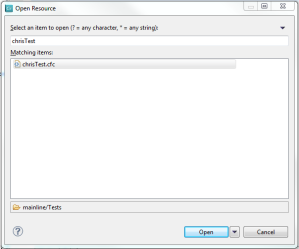
Ctrl+Shift+R (Open Resource…)
Another resource worth mentioning, but is not new is the Open Resource window. Apparently it’s been around a long time in Eclipse, but I just learned about it.
When you open the window, you can start typing a name of a file which will bring up a list a matching files located in your project. For example “tests” may bring up “TestSuite.cfc”, “TestSimple.cfm”, and “TestSomething.html”. In addition you can select the resulting file to find its path and open it either in its specific or default editor.

However the best part of this is if you highlight a file reference in your code, then press Ctrl+Shift+R it will bring that highlight into the search filter readily giving you access to the file you are searching for. This can be especially handy if you can’t use the code hyper-link due to component searching, which ColdFusion Builder can’t resolve yet.

Explore Files and Copy Path(s) to Clipboard
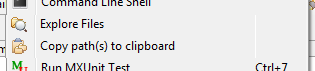
While a file is open to edit, right click for the context menu. Here you will see two commands listed:

  • Explore Files
  • Copy path(s) to clipboard

“Explore Files” will open your Windows Explorer to the path of that currently open file and focus to the file name.

“Copy path(s) to clipboard” will copy the path of the open file to your clipboard. Example: “C:\websites\myfile.cfm”

Coldfusion Builder 2 Beta and jQuery Code Assist

I am currently using ColdFusion Builder 2 Beta for my primary projects. One item I noted was the lack of jQuery code assist.

I did find a way to turn code assist on for jQuery 1.3. After some research I really haven’t found a way to include 1.4, 1.5 or 1.6RC. But 1.3 is better than nothing.

To turn on jQuery 1.3 code insight go to [ preferences > HTML > Editors > JavaScript > Code Assist ] and select jQuery 1.3. After you click [OK] jQuery code insight will work right away.

If anyone knows how to upgrade the versions w/o major work please let me know. Thanks!

Word Wrap in ColdFusion Builder

I don’t know how many times I’ve had to lookup how to turn on word wrap in ColdFusion Builder. I’m guessing most people will only need to do this once, but I’m constantly messing around with new installations and alpha/beta releases. So mostly as a reference for myself, here’s how to turn on word wrap inside ColdFusion Builder:

  1. Open Window > Preferences from the toolbar
  2. Go to HTML > Editors in the left navigation
  3. Click the Advanced tab
  4. Click the checkbox for “Enable word wrap (requires editor restart)”
  5. Click the “OK” button
  6. Restart ColdFusion Builder

hierarchyid Data Type Not Supported in ColdFusion 9

Microsoft SQL 2008 introduced the hierarchyid datatype helping with child/parent relationships. However this causes an issue if you try to select its data via ColdFusion’s Microsoft SQL Server driver. This breaks in ColdFusion 9.0.1 and I assume prior versions.

Example Table:

CREATE TABLE Org_T1
(
EmployeeId hierarchyid PRIMARY KEY,
EmployeeName nvarchar(50)
)

Example SQL Call:

SELECT * FROM Org_T1

Now first of all you should try to avoid “SELECT *” when possible anyway to increase efficiency. Otherwise the table columns are looked up before querying for results, adding an extra process step.

The way around this would be to list the columns you actually need in the select statement. If you need the data from the “EmployeeId” column you could append the “.ToString()” function to the column name. Example:

SELECT EmployeeId.ToString(), EmployeeName
FROM Org_T1

This will in effect change what data you receive however. The raw data looks something like “0xf0”. The result of the ToString() method looks something like “\1\” and I believe will be of varchar type.

There is a bug entry with Adobe here: http://cfbugs.adobe.com/cfbugreport/flexbugui/cfbugtracker/main.html#bugId=83590 . Feel free to go vote on this issue to increase its visibility with the ColdFusion team.

Detect Mobile Browsers

I’m still fairly new to the mobile platform programming and I’ve never been able to find a good way to detect if you’re coming via a mobile browser or a full browser – until now. Usually what I do is put this in my normal page headers and redirect them to a mobile directory if mobile is detected.

Thanks to Ray Camden‘s suggestion, check out Detect Mobile Browser.

This site has contains open source mobile phone detection scripts for 15 languages / apps.

List includes: Apache, ASP, ASP.NET, ColdFusion, C#, IIS, JSP, JavaScript, jQuery, nginx, node.js, PHP, Perl, Python, and Rails

The ColdFusion script is pretty straight forward and uses a regular expression to figure it all out.

Continue reading

#mobile

MockBox – Mocking a Super Class – Solution

Yesterday I wrote about mocking a super class method while unit testing with MXUnit. If CFC A extends CFC B, and both have the same method name, how do I mock the super method for its call?

Luis Majano with ColdBox wrote up a Blog Post to address how to accomplish this.

Use my example from my previous post:

<!--- Child Class --->
<cfcomponent name="C" extends="message" output="false">
    <cffunction name="send" access="public" returntype="void" output="false">
        <cfargument name="name" type="string" required="true">
        <cfif name neq "test">
            <cfset super.send(name=arguments.name)>
        </cfif>
    </cffunction>
</cfcomponent>

<!--- Parent Class --->
<cfcomponent name="P" output="false">
    <cffunction name="send" access="public" returntype="void" output="false">
        <cfargument name="name" type="string" required="true">
        <!--- Do something --->
    </cffunction>
</cfcomponent>

The super scope is a reference in the variables scope. You can create a MockBox stub to accomplish mocking the super scope. This example creates an empty stub object that mocks the parent send method. The child’s super variable is then overwritten with this stub object. Stub objects are generally used to start working on a project where you are relying on other teams to build that object but has yet to be built.

function setup(){
    variables.mockBox = new mockbox.MockBox();
    variables.component = variables.mockBox.prepareMock( createObject("component","C") );
}

function testSend() {
    // create a virtual super scope and mock a send method on it
    mockSuper = variables.mockBox.createStub().$("send");

    // inject the mock super into the variables scope
    variables.component.$property("super","variables", mockSuper);

    // run the method call
    variables.component.super.$('send');</pre>
}

Luis also states that you can also create a mock of the parent class to leave the methods intact.

variables.mockBox.createMock("P").$("send");

I am still looking for opinions on if I should actually be doing this? Perhaps I should just consider the parent class as a whole and just let the parent method run. What are your ideas on this? How have you handled this in the past and how was your outcome?

#mockbox, #super-class

MockBox – Mocking a Super Class

I’m getting my hands dirty using MXUnit Testing w/ MockBox recently. The basics where fairly easy to pickup, but I’ve now hit a road block. Lets say I need to test this method:

<cfcomponent extends="message" output="false">
    <cffunction name="send" access="public" returntype="void" output="false">
        <cfargument name="name" type="string" required="true">
        <cfif name neq "test">
            <cfset super.send(name=arguments.name)>
        </cfif>
    </cffunction>
</cfcomponent>

So following unit test ideology, I should just test what’s happening in this method and not attached methods.  If I had instantiated an object or the method was in the some component I could just mock the method being called. However since the method is located in the component’s parent, this does not appear to be working. The test contains:

variables.mockBox = new mockbox.MockBox();
variables.component = CreateObject('component', 'thisComponent');
variables.mockBox.prepareMock(variables.component);
variables.component.super.$('send');

This returns the error: “Expression: Element COMPONENT.SUPER is undefined in a Java object of type class [Ljava.lang.String; referenced as ””.

Now technically I could wrap the super.send call inside another local method and mock that method. However that would be coding for the test and would be worthless code and processor usage outside the test.

I’ve Googled this and searched ColdBox’s site for a solution to this, however I’m not getting anywhere.

Does anyone have any ideas or suggestions?