Troubleshooting High SQL Server CPU on Amazon RDS

Today’s scenario consists of a db.m6i.2xlarge Amazon RDS instance running Microsoft SQL Server Web Edition. A newer “greenfield” web application has a larger number of users hitting it during work hours.

An alert indicated that the server was nearing its CPU capacity. To start our investigation, we examine the instance’s Monitoring tab and see that the “CPUUtilization” metric indeed indicates an issue. This chart shows a server restart around the 17:35 mark to free up some resources. However, it quickly rockets back up.

Next, we examine our Database Insights (which you will need to activate in advance). Here we see CPU waits exceeding our max vCPU threshold, indicating an issue.
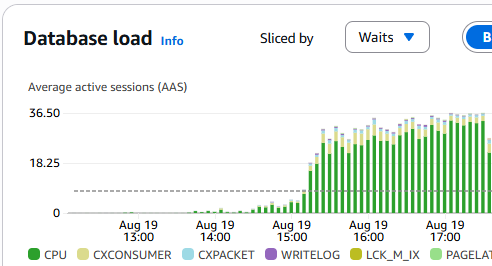
We then scroll down to the “Top SQL” tab and see that our most considerable wait (taking up 5.44% of the database load at the time of this screenshot, a few hours after the fix) is our target SQL query.

One of the items that we double-checked and found as an oversight was that the max degrees of parallelism (MAXDOP) parameter was set to 0 (unlimited). When using OLTP, or Online Transaction Processing, it’s best to set it to 1, effectively disabling parallelism. It ensures that no single query can consume too many resources, leaving processor cores available for other user requests. This improves overall system responsiveness and throughput.

However, after setting this to 1 and rebooting the instance, we found the primary issue remained. MAXDOP issues tend to be reflected as “CXPACKET” waits instead of “CPU” waits, and you can see all the “CXPACKET” waits, shown in light blue in the screenshot chart below, ceased at 18:30 when the parameter was changed from 0 to 1 and the server was emergency restarted.

During troubleshooting, developers optimized the query to join on a primary ID and then do a fuzzy search. Per the developer, the previous query was not utilizing the indexes properly.

At about 19:30 on the chart, the optimized query was pushed to production. The SQL Server was then emergency restarted to clear the hanging queries. You can see that the issue was then resolved with a practical database load and wait metric.

Random monitoring for a few hours confirmed that the fixes have resolved the issue.

In conclusion, utilize AWS RDS’s database insights and CloudWatch monitoring tools to look for clues. Often, on an OLTP stack, database waits become an issue that manifests as slow-loading web pages. Use application performance monitors (APM) such as FusionReactor for ColdFusion and Lucee servers to help you narrow down troublesome issues.

As a side note, while restarting production databases during normal hours is never great, you have to weigh the benefits. In this case a minute or two of downtime won over endless lag. Credit goes to Amazon RDS for a very speedy server restart. We were back up within a minute or two at most after hitting restart!
#aws, #database, #microsoft, #rds, #sql

Is it Cheaper to run Windows Servers on Azure than AWS?

Spoiler alert; the answer is yes. And by quite a bit. But with reservations. You have to look at the whole picture.

I took an example linked AWS account that had two Windows EC2 compute instances currently running. Both are webservers, one for production and one for staging. The following monthly cost comparisons use both on demand and savings plans that are for 1-year commitments with no down payment as this is typical for me.

AWS InstanceOn DemandSavings PlanAzure InstanceOn DemandSavings Plan
t3a.2xlarge$327$266B8ms$247$171
m7i-flex.2xlarge$535$461D8d v5$330$226

As you can see, I could potentially be saving up to $330 on just these two instances by moving to Azure from AWS. $3,960/yr is a decent vacation or maybe a paycheck. So why not switch cloud providers? Well, there is the cost of learning a new infrastructure and dealing with all the nuances that come with it. But in this specific case, it’s managed database services.

The following compares single AZ Microsoft SQL Server Web Edition on Amazon RDS with Provisioned vCore Azure SQL Database. Note that Azure SQL Database is edition agnostic. There is also Azure managed SQL, but that’s even more expensive. We won’t be comparing AWS reserved instances to Azure reserved instances because we may never buy a reserved RDS instance on AWS for this account. Once you buy it, you are very locked in. No instance type or size exchanges, nor selling it on a marketplace. But you can see, a reserved instance on Azure is still more expensive than AWS on demand.

AWS InstanceOn DemandAzure InstanceOn DemandReserved Capacity
db.m6i.xlarge$430D4s v5$737$581
db.m6i.2xlarge$890D8s v5$1,105$1,162

Find that odd? You actually get a better value on Azure when comparing it to the standard or enterprise edition. However, I deal primarily with Web and Express editions. The majority of applications I handle don’t require the functionality or redundancy built into standard and enterprise editions. However, if you were to require standard or enterprise, I would strongly suggest looking at using Azure to save you quite a bit of money, or start using Linux and an alternative database technology like Aurora on AWS.

When we factor in the managed database, we now do not find value moving to Azure from AWS as the realized savings is now lost. Yes there are options to spin up the database on a VM and manage it ourselves, but now you are adding in monthly labor costs and additional license costs for backups, not to mention the lost performance gains RDS or Azure SQL Database brings.

In conclusion, hosting Windows servers on Azure over AWS can save you money. But you need to factor in all the services, even beyond the database, including system administration labor and 3rd parties utility integration. Why can Azure have potentially significant savings on Windows servers? Because Microsoft owns both the infrastructure and the licenses. They do not translate the same license discounts to other cloud providers. For example, you used to be able to bring your own SQL license to AWS RDS, but that was discontinued some time ago.

Note: Turn off the “Azure Hybrid Benefit” slider when viewing Azure pricing. This option requires bringing your own license and does not facilitate an accurate pricing comparison.

If you are interested, Microsoft has an official AWS-to-Azure compute mapping guide; however, I used Microsoft Copilot to help me find the equivalent instance types and sizes. There are also web utilities that map them you can search for.

#aws, #azure, #comparison, #compute, #cost

Removing Emails from Amazon SES Account Level Suppression List Using CloudShell

There are a number of methods for removing emails from the Amazon Simple Email Service (SES) Account Level Suppression List. But underneath they all use the API. This could be via a native API library, importing a file in the console UI, using the CloudShell, and more. But one thing is for certain, the Console UI does not make the practical. You must use the CLI/API in one way or another.

For purposes of this article, we will use the CloudShell. I write this because after asking Amazon Q and doing some Google searches, they all failed. I ended up with a good answer from the handy Stack Overflow post Remove Email from AWS SES Suppression List by user “Jawad“, even though it wasn’t marked as the accepted response.

Just a forewarning, there’s nothing fast about this. It iterates about one email per second, so expect to be monitoring this for a while.

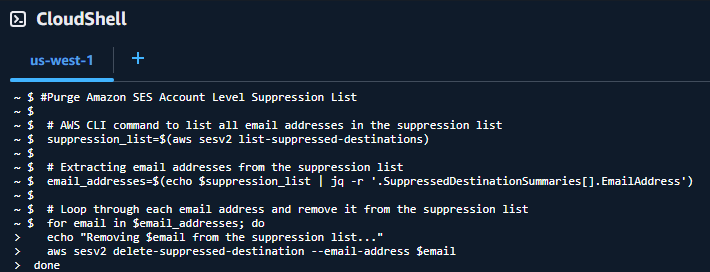
The CloudShell can be access by pressing the “CloudShell” icon in the top header of the AWS console. It looks like a command prompt inside of a window icon. It will default to the region you have currently selected.

 #Purge Amazon SES Account Level Suppression List

 # AWS CLI command to list all email addresses in the suppression list
 suppression_list=$(aws sesv2 list-suppressed-destinations)

 # Extracting email addresses from the suppression list
 email_addresses=$(echo $suppression_list | jq -r '.SuppressedDestinationSummaries[].EmailAddress')

 # Loop through each email address and remove it from the suppression list
 for email in $email_addresses; do
   echo "Removing $email from the suppression list..."
   aws sesv2 delete-suppressed-destination --email-address $email
 done

 echo "This page of emails purged. Rerun this script to delete further potential pages of emails, if emails were deleted."

Once you run this script, if emails were listed as deleted, run it again. Additionally, changes may take up to 48 hours to propagate. You may find the email still has the status that it is on the suppression list until it propagates.

The command list-suppressed-destinations retrieves the first page of up to 1,000 objects (default), which includes the email. At the end of the returned suppression_list value, if a “NextToken” string is defined, there are more emails still in the list. You can add a --no-paginate parameter to the command to turn off pagination, but depending on the size of your list, it’s possible you may run into unexpected issues, like memory limitations, that I have not tested for. See command documentation.

You can adapt this script to a CLI outside of the CloudShell by adding in --region <your-region> property to the list-suppressed-destinations and delete-suppressed-destination commands.

The other methods that were introduced that I found seem to have failed mostly because they introduced/kept double quotes around the email address, leading to the following error during the delete-suppressed-destination command:

An error occurred (NotFoundException) when calling the DeleteSuppressedDestination operation: Email address (email address) does not exist on your suppression list.

#amazon, #aws, #cli, #cloudshell, #email, #script, #ses, #suppression-list

Always Encrypt AWS EC2 Instances

When running a business and the goal is to become successful, you may inevitably fill out a risk assessment questionnaire that asks, “Is all your data encrypted at risk?”. And when you start looking at your list of EBS volumes created over the past period of time, you might be surprised to learn that the “encrypted” property of your volumes very well might equal “false”. NVMe instance store volumes are encrypted, but many EC2 solutions rely on EBS volumes, and they are not encrypted by default.

Encryption at rest for Amazon Elastic Block Store (EBS) volumes protects data when it’s not in use. It ensures that data stored on the physical storage media in an AWS data center is unreadable to anyone without the appropriate decryption key. Many argue this is a fundamental component of a strong security strategy, and they are not wrong.

AWS leverages its Key Management Service (KMS) to manage the encryption keys. You can use the default AWS-managed keys or create and manage your own customer-managed keys (CMKs) for more control over key policies, access permissions, and rotation schedules.

Does encryption at rest really matter while at an AWS data center, specifically? Unless you are dealing with classified information, probably not. AWS has an amazing level of virtual security separating your data from bad actors, both virtually and physically. The chances of someone walking off with your data medium (hard drive) are slim to none, and when the medium goes bad, the destruction and audit process is equally impressive. But at the end of the data, it matters to someone’s boss, their investors, policies, perception, and potentially your career. Many industry regulations and security standards, such as HIPAA, PCI DSS, and GDPR, require that sensitive data be encrypted at rest.

Security is like an onion with many layers. While AWS has robust physical and logical security controls in place, encryption at rest adds another vital layer of protection. This “defense-in-depth” approach ensures that even if one security control fails, others are there to prevent a breach.

Encryption isn’t limited to just the EBS volume itself. Per AWS documentation, when you encrypt an EBS volume, any snapshots you create from it and any subsequent volumes created from those snapshots will also be automatically encrypted. This provides an end-to-end security envelope for your data’s entire lifecycle.

So why not do it? The list of reasons is small, but you need to be aware of them, especially when dealing with AMIs and cross-region copies:

  • Very minimal increase in latency (typically negligible)
  • If a key becomes unusable (disabled or deleted), you cannot access the encrypted volume data until the key is restored
  • Additional key management overhead may be necessary if you opt to manage your own keys
  • AMIs with encrypted snapshots cannot be shared publicly – only with specific AWS accounts
  • Cannot directly copy encrypted snapshots to another region (must re-encrypt with destination region key)
  • Minimal additional cost for AWS KMS key usage

When creating an EC2 instance, the default view does not encrypt the volume. You will need to press the “Advanced” link in the “Configure storage” section first.

Then, expand your volume details. Next, change the “Encrypted” property from “Not encrypted” to “Encrypted”. Optionally, select your KMS key or leave it alone, and it will use the default. While you are here, you may wish to change the “Delete on termination” from “No” to “Yes”. This will help prevent any accidental data loss in edge cases, but be aware that this may lead to unexpected orphaned EBS volumes if you don’t go in and clean up your EBS volumes when you delete EC2 instances.

If you forget to turn this on, or you have an existing instance, you can still convert the volume to encrypted. It is a bit of a process though. You need to stop the instance, create an encrypted snapshot, detach the volume from the instance (jot down the device name such as /dev/xvda), restore the encrypted snapshot as a volume, and attach the volume to the instance with the same device mapping.

#aws, #ebs, #ec2, #encryption

Installing Docker w/ Compose on Amazon Linux 2023

Installing Docker with the Compose v2 plugin does not follow the recommended paths outlined on the Docker website. Specifically, it suggests that you add either the CentOS or Fedora repo and then run sudo dnf install docker-ce docker-ce-cli containerd.io docker-buildx-plugin docker-compose-plugin, stating that sudo dnf install docker is the obsolete way of doing it (“ce” stands for community edition and “ee” stands for enterprise edition). Unfortunately, that does not work. Another thing to note is that Amazon’s repo uses a more stable version of Docker rather than the most current one. While this is typically a good thing, you may be missing out on a security patch you need.

Here is a script that I use for reference:

#ensure all the installed packages on our system are up to date
sudo dnf update
#use the default Amazon repository to download and install the Docker
sudo dnf install docker
#start Docker
sudo systemctl start docker
#start automatically with system boot
sudo systemctl enable docker
#confirm the service is running
sudo systemctl status docker
#add our current user to the Docker group
sudo usermod -aG docker $USER
#apply the changes we have done to Docker Group
newgrp docker
#create plugin directory for all users
sudo mkdir -p /usr/local/lib/docker/cli-plugins
#download current version of docker compose plugin
sudo curl -SL "https://github.com/docker/compose/releases/latest/download/docker-compose-linux-$(uname -m)" -o /usr/libexec/docker/cli-plugins/docker-compose
#make plugin executable
sudo chmod +x /usr/libexec/docker/cli-plugins/docker-compose
# restart docker service
sudo systemctl restart docker
#verify docker compose works
docker compose version
Note: Because the docker compose plugin was manually installed, it will not be updated with future yum/df updates. You will need to repeat the download and permission process to update it.

If you have a better way of doing this, I’d love to hear your feedback!

#docker, #docker-compose

Learning “AWS Backup” Restorations for On-Prem VMWare VMs

CF Webtools has maintained VMWare ESXi guest OS instances, managed by vCenter, for about 7 years. They are a mix of Linux and Windows Server OSs and are maintained at a secure and redundant co-location data center. While an expensive up-front investment, it has paid for itself over those years, and we have a plan to continue that solution for about another 5 years. A recent upgrade to the next major version proved that virtual machines take a fraction of time for maintenance compared to bare metal instances. Granted, there’s some spin-up time when things work for so long, and you must remember, research, and troubleshoot procedures. Managed cloud takes almost all that time out of the equation, making it my favorite. Though I do miss hands-on hardware here and there.

Some of our on-prem VMs are critical, and some are not. The critical ones have always been backed up with different solutions, depending upon what they are and what the recovery needs look like. However, almost all have come with challenges. So I wanted to look for a VM snapshot-based cloud backup solution that I could trust and would be budget-friendly.

My first direction was to research Veeam. Their solution is very well known. However, it was a struggle to get the attention of Veeam and CDW as a small business without an existing account. I was able to lean on one of our hardware vendors, xByte, who hooked us up with one of their Veeam partners. But it was determined that it was fairly costly with a per-instance license model compared to our existing solutions. So I continued my search.

I then found AWS Backup has an on-prem VMWare solution. AWS Backup is relatively new to the backup game, but its implementations are continually growing. We currently use that service for all our AWS EC2 backups. That service was a “God send” after numerous awful implementations of custom Lambda/CloudWatch scripts and an EBS Automation method. Finally, a solution for what should have been around since the start of EC2.

As of November 2021, AWS Backup offers backup for on-prem VMWare vCenter servers. You must install their Storage Gateway virtual appliance as the “middleman” agent. I was hoping for an “agentless” solution; however, we only pay $0.05/GB-Mo warm storage and $0.01/GB-Mo Cold Storage. That’s a considerable saving, considering we do not have to pay for a license per instance, and there are no incoming bandwidth fees! We will have to pay bandwidth for on-prem restores, but considering that is very rarely done, and bandwidth is relatively cheap, it’s a non-issue. We’d have to pay for storage anyway, so there’s no change.

Another significant advantage is we get a single backup solution for both on-prem and AWS Cloud. It’s one less piece of software we must be familiar with, document, troubleshoot, and keep updated. Outside of an office domain controller, we also anticipate a complete cutover to AWS in 5 years.

Continue reading

#aws-backup, #backup, #vm, #vmware, #vsphere

Upgrading PostgreSQL on Docker Compose

I took the dive into Docker Containers on Linux. I’ve been meaning to do this for quite some time, but really my specialty of ColdFusion and Microsoft SQL Server really doesn’t require much in the way of containers.

However, my current project is to convert our internal wiki from WikiPedia to Wiki.js. During this process, I’ve learned about Docker and Docker Compose. I’m currently running Docker 20.10.12 and Docker compose V2. So I use “docker compose” rather than “docker-compose”. This is being run on Amazon Linux 2, on-premise. These steps should work for any RHEL-based Linux distro and beyond.

During this process, I somehow ended up running PostgreSQL 11 when the latest version is 14. I already had data in the database, so I thought it’d just be best to learn how to upgrade PostgreSQL, which is not as simple as changing the version number in the docker-compose.yml config file.

Thank you to José Postiga with Better Programming for getting started with the “How to Upgrade Your PostgreSQL Version Using Docker” blog post. I was able to accomplish the upgrade with some modifications.

To upgrade PostgreSQL from 11 to 14 (other versions seem to require the same steps), these general steps must be accomplished:

  1. Create a temporary folder for the database backup and share it with your PostgreSQL container instance
  2. Backup the database
  3. Shutdown the database container
  4. Remove the database data
  5. Change the PostgreSQL version
  6. Change password encryption
  7. Start the database container
  8. Restore the database
Continue reading

#4%e5%ae%ae%e5%b3%b6%e6%a4%bf%e3%81%ae%e5%a0%b4%e5%90%88, #docker, #docker-compose, #postgresql, #upgrade

Getting AWS Java SDK 2.0

In the past I’ve always used REST calls to the AWS API from ColdFusion. There are never any complete CFC libraries that work and they’re almost always dated. The reason being that AWS moves so fast, it’d require a full time person or more to keep it up-to-date and complete.

I am moving towards using the AWS Java SDK to call Java methods from ColdFusion. The SDK is kept up-to-date regularly by AWS and is quite complete and proven. The most common SDK in use today is version 1.x. However, late last year they came out with version 2.0.

According to AWS, “it is a major rewrite of the 1.11.x code base. Built with support for Java 8+, 2.x adds several frequently requested features, like nonblocking I/O, improved start-up performance and automatic iteration over paginated responses. In addition, many aspects of the SDK have been updated with a focus on consistency, immutability, and ease of use.”

But as a non-Java developer that uses Java libraries, this hasn’t come without difficulties. Because of its sheer size, AWS requires you to compile the source into a JAR file. You can compile all of it, which took me 1 hour and 3 minutes at a size of 122MiB. However, they recommend only compiling the (components) service that you plan on using.

I initially installed Maven on Windows 10 to compile it. However, as of version 2.3.6 there is a bug which makes the test fail in Windows, and thus the build. An issue was opened to resolve this and as of 1/22/2019 is pending to be merged into the master branch.

Therefore I compiled in Ubuntu for Windows.

Here’s my commands I used to get the environment ready and build the whole SDK using Maven:

sudo su
apt-get update && apt-get upgrade
# Install Maven
apt install maven
# Install Java SDK 8
apt-get install software-properties-common
add-apt-repository ppa:webupd8team/java
apt-get update
apt-get install oracle-java8-installer
# Verify Maven works and it does not throw a JAVA_HOME notice
mvn-version
# Get the AWS SDK source
git clone https://github.com/aws/aws-sdk-java-v2.git
# Check out a tag containing the release you want to use for the build
cd aws-sdk-java-v2
git fetch && git fetch --tags
git checkout 2.x.x
# Build out the SDK
mvn clean install
# compiles to ./bundle/target/aws-sdk-java-bundle-2.x.x.jar

Now, as I mentioned before, it’s recommended to compile only the components (services) you are going to use to reduce the JAR footprint.

The guide for this can be found here: https://docs.aws.amazon.com/sdk-for-java/v2/developer-guide/setup-project-maven.html

However, I found that guide to be fairly unhelpful. Currently I haven’t been able to get it to build successfully (it creates an empty JAR file).

Basically it’s supposed to use a “Bill of Materials” in the “MVN Repository” as your dependency dictionary. Then I believe it’s supposed to download the source files located in the MVN Repository, based upon your dependency definitions.

Here’s my pom.xml file that is used to define all that:

mvn-no-jar

After hours of frustration, I decided to boot up an AWS Linux 2 instance to see if maybe it was Windows Ubuntu related. Interestingly enough I got a different outcome.

When looking at the contents of the target jar, it looks promising. Not exactly sure what to expect just yet.

#jar, #java, #sdk

AWS Introduces Service Backups

Currently to backup EBS volumes on AWS, CF Webtools, and many other organizations, rely upon either custom Lambda script that can be buggy or a hard to figure out solution that’s deployed from a package AWS supplies.

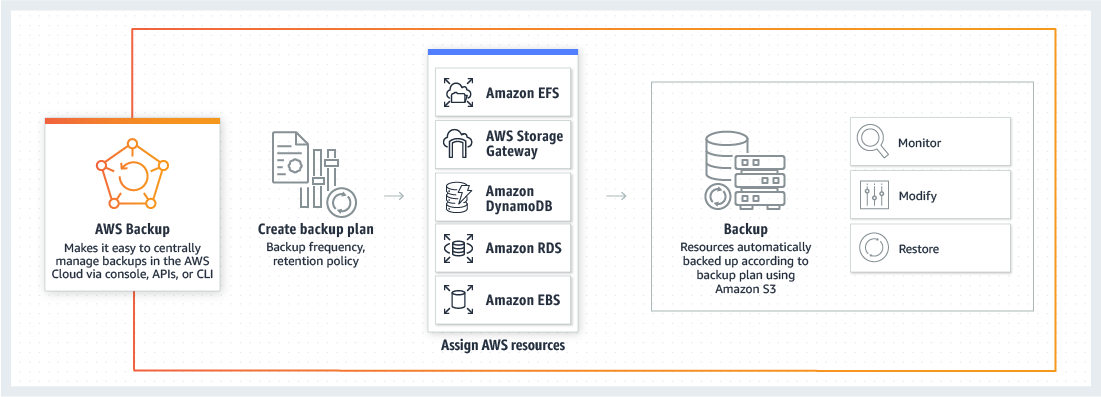
Today AWS announced a centrally managed and automated solution for backing up multiple AWS services, including AWS: “AWS Backup

product-page-diagram_aws_backup_how-it-works.aafc7b1324fd4d8b52e9fbcd5c95e14529de27c6

This appears to be a backup solution that seeks out tags for different services. But the key here is this appears to be a well-thought-out solution that we don’t have to dick around with to make it work.

Service levels backups are provided for Amazon EFS and Amazon DynamoDB. Service-level snapshots are provided for Amazon RDS Amazon EBS and AWS Storage Gateway.

You can also backup your on-premise data via the AWS Storage Gateway.

I look forward to implementing this service to provide our clients with a much more reliable backup solution.

New AWS Windows and DR Services

49137469 - a word cloud of disaster recovery related items

On January 7th, 2019, AWS released the AMI for Windows Server 2019. This comes a few months after the October 2nd, 2018 release of the new Microsoft OS.

Some highlights include smaller and more efficient Windows containers, support for Linux containers for application modernization and App Compatibility Feature on Demand. It comes under the standard AWS Windows pricing model.

On that note, Windows Server 2008 R2 (SP1) is at end-of-life in about one year, while Windows Server 2012 R2 End of Mainstream support was back in October of 2018. Don’t let technical debt put you into a predicament. CF Webtools operations team can assist you with upgrading your operating system to a more recent version, whether it be the weather tested Windows Server 2016 or the most modern version of Windows Server 2019.

CF Webtools uses CloudEndure to provide disaster recovery (DR) services to our on-premise and data center clients. The service is low impact and gives you the security your organization demands. We investigated multiple DR services and chose CloudEndure to be our primary solution.

Amazon has recently acquired CloudEndure. The company was backed by Dell, Infosys and others. They have been an AWS Advanced Technology Partner since 2016. More details have yet to surface.

If you are interested in Disaster Recovery Services for your organization, please contact us and we’d love to help you.