SQL to ColdFusion ORMType Reference

I have not been able to find a good reference chart out there that maps SQL Data Types to ColdFusion ORM Data Types. It’s always really been my best guess. So I’m going to start a reference chart here that as I figure it out I’ll update. If you have any input on this please comment and I will update. Thanks!

ORMType SQL MySQL
big_decimal DECIMAL, MONEY DECIMAL
binary BINARY, VARBINARY TINYBLOB
blob TINYBLOB
Boolean [SMALLINT], BIT BIT
clob LONGTEXT
date DATE DATE
double DOUBLE, MONEY, NUMERIC DOUBLE
character, char CHAR
float REAL, FLOAT FLOAT
integer, int INT INT
long BIGINT BIGINT
serializable TINYBLOB
short SMALLINT SMALLINT
string CHAR, NCHAR, VARCHAR, NVARCHAR VARCHAR
text TEXT, NTEXT LONGTEXT
timestamp DATETIME, SMALLDATETIME, TIMESTAMP DATETIME
true_false CHAR
yes_no CHAR

Notes on Installing Local ColdFusion 10 Beta, ColdFusion Builder 2.0.1 Beta and IIS 7

I recently did a clean install with ColdFusion 10 Beta and ColdFusion Builder 2.0.1 Beta on a Windows 7 SP1 64-bit machine. (This is for a local development environment)

IIS

After installing IIS 7 with defaults and turning on ISASPI filters, I noticed ColdFusion would not initialize. After reading through some notes be sure to turn on these options for IIS 7:

  • .NET Extensibility
  • ASP.NET
  • CGI
  • ISAPI Extensions
  • ISAPI Filters

Web Root

I noticed when installing ColdFusion, the option for where the web root is located has been removed. It’s kind of complicated, so I’ll give you an example of how I changed mine to c:\wwwroot.

  1. I pointed my default IIS site to c:\wwwroot. This is probably not necessary as long as you have another site setup with virtual directory for /CFIDE (C:\wwwroot\CFIDE) and /jakarta (C:\ColdFusion10\config\wsconfig\1). Notice the new jakarta requirement in addition to the standard CFIDE alias.
  2. Copy (or perhaps move) the contents of “C:\ColdFusion10\cfusion\wwwroot” to “C:\wwwroot”. This should include the folders CFIDE and WEB-INF.
  3. Edit the file “C:\ColdFusion10\cfusion\runtime\conf\server.xml”
  4. Copy the “<Context…” open and close element that is currently commented out to the next line uncommented.
  5. You will need to change the docBase to your new webroot, the WorkDir to the absolute path, and the aliases for CFIDE and WEB-INF. Why the aliases are needed in both IIS and this config you’ve got me. But if you leave them out you’ll end up with an error from Apache. Not sure what this is about yet.
    <Context path=”/” docBase=”C:\wwwroot” WorkDir=”C:\ColdFusion10\cfusion\runtime\conf\Catalina\localhost\tmp” aliases=”/CFIDE=C:\wwwroot\CFIDE,/WEB-INF=C:\wwwroot\WEB-INF” ></Context>
  6. Restart your ColdFusion server service.
Thanks to Ryan Anklam’s Blog for providing me with a starting point on this.

ColdFusion Builder 2.0.1 Beta

After I installed ColdFusion Builder 2.0.1 Beta (running as Administrator), I attempted to add the server to the server view. However I ran into the issue where only ColdFusion version 9 was available. After a post to the discussion groups I learned:

  • The Application Server setting should be “CF+Tomcat Bundle” instead of Jrun.
Also there is a difference for enabling the console view on ColdFusion Builder.
  • Be sure to install the ColdFusion Jetty Service during the ColdFusion 10 install to be able to start and stop your ColdFusion service.
  • You no longer need to set the ColdFusion Application Server service to manual.
  • ColdFusion Builder 2.0.1 will now control the service instead of its own instance.
  • Console view works with the service started instead of its own instance.

I still have a lot of playing around to do with this combination, but I hope this helps a few of you out in the mean time.

#coldfusion-application-server, #jetty, #jrun, #server-service, #server-view, #web-root

jQuery Select All Checkboxes

I needed to come up with a generic way of checking all checkboxes that could be reused using jQuery. At first I thought about using the data- attribute to define which class of checkboxes to check. But then found a great way to just check all checkboxes that are located in their element container. (The .on method required jQuery 1.7)

HTML Example Code:

<div class="control-group">
<input type="checkbox" class="selAllChksInGroup"> All
<input type="checkbox" value="NE"> Nebraska
<input type="checkbox" value="FL"> Florida
</div>

JavaScript Code:

$(document).ready(function(){

$("input[type=checkbox].selAllChksInGroup").on("click.chkAll", function( event ){
    $(this).parents('.control-group:eq(0)').find(':checkbox').prop('checked', this.checked);
});

});

Camel Case for Two Letter Acronyms

Here’s another “for later reference”…

Microsoft’s rules for .NET Framework 1.1 Abbreviations consist of:

  • Do not use abbreviations or contractions as parts of identifier names. For example, use GetWindow instead of GetWin.
  • Do not use acronyms that are not generally accepted in the computing field.
  • Where appropriate, use well-known acronyms to replace lengthy phrase names. For example, use UI for User Interface and OLAP for On-line Analytical Processing.
  • When using acronyms, use Pascal case or camel case for acronyms more than two characters long. For example, use HtmlButton or htmlButton. However, you should capitalize acronyms that consist of only two characters, such as System.IO instead of System.Io.
  • Do not use abbreviations in identifiers or parameter names. If you must use abbreviations, use camel case for abbreviations that consist of more than two characters, even if this contradicts the standard abbreviation of the word.

These appear to be good guidelines to follow for ColdFusion as well. I was going after casing for two letter acronyms in this case.

REF: http://msdn.microsoft.com/en-us/library/141e06ef(v=vs.71).aspx

Looping Over Arrays in ColdFusion 9.01 (CFScript)

This is pretty much a “note to self”… but in ColdFusion 9.01 you can now loop over arrays using the  for – in loop while in cfscript.

Syntax is:

for(item in array) {
    doSomething(item);
}

#array, #arrays, #coldfusion-2

My New Experience Getting ColdFusion Builder 2 Console Working

I have ColdFusion 9 Developer Edition installed on my Windows 7 machine running IIS7. Normally my ColdFusion 9 Application Server service starts automatically for me.

Recently I have started learning and developing with ORM. Because of this, I need to figure out what ORM is asking the SQL server to make sure it’s not doing anything crazy.

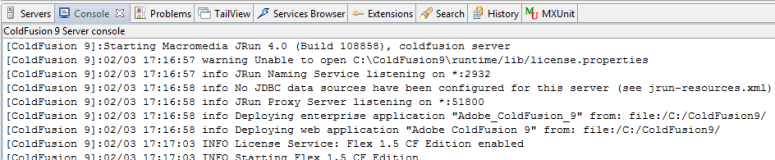
To do this I turned on logsql in ormSettings config in application.cfc. Then found that it would log to a file or the Console view.

But alas, nothing showed in my Console view, and yep, I did have a server configured in the Servers view.

So I find out that I need to stop/start the server in the servers view to get this working. After trying that it pretty much lied to me and said it did when it really didn’t.

At that point I stopped the service in the Windows service and tried to start from ColdFusion Builder. No such luck.

Then I tried restarting ColdFusion Builder w/ Administrator rights. BAM – now I can get the CF service started.

But I notice something interesting. The service in the Windows Service Manager still shows stopped after a refresh. But alas my Console works perfectly.

So I have no idea what is going on, but this is what I figure needs to happen to get this all working correctly:

  1. Change the ColdFusion 9 Application Server properties of startup type to manual and stop the service.
  2. Close ColdFusion Builder if already open and start it as Administrator (right click icon and select Run As Administrator)
  3. In the Servers View in ColdFusion Builder, edit your server config and auto start and stop the CF Server. (optional but recommended… If you close CF Builder, you will need to restart the server anyway)
  4. Select your server and click the green run arrow.
  5. You should see ColdFusion startup with a bunch of output in the Console at this point.
At this point I would suggest modifying your shortcut to always run as administrator. This has gotten me many times already, so I finally made this change.
  1. Right click shortcut and select properties
  2. Click Advanced button
  3. Turn on “Run as administrator”
  4. OK > OK

What a mess! Needs to be a slicker way of getting this rolling without an hour of research and messing with Administrator rights. But hope this helps my memory and anyone else scratching their head!
#orm