Flushing Google Chrome DNS

Google’s Chrome browser keeps its own DNS cache for whatever reason. Clearing your local OS DNS cache isn’t good enough to resolve a new IP that it likes.

Rarely do I ever run into this issue on my Windows 7/8/10 machines but for Mac users it’s a more common issue.

But here’s what I found worked for a sticky DNS issue I just ran into on Windows 10:

  1. Clear OS DNS cache using “ipconfig /flushdns” in the command prompt.
  2. Go to “chrome://net-internals/#dns” in Google Chrome
  3. Click the “Clear Host Cache” button on the page that is now displayed.
  4. Clear OS DNS cache using “ipconfig /flushdns” in the command prompt.
google-dns-cache

Chrome’s DNS cache screen

#cache, #chrome, #dns, #google

If The World Were 100 People

Thanks to “GOOD Data” for putting together this excellent visual. I’m a visual kind of guy!

Continue reading

#statistics

Come Work With My Team!

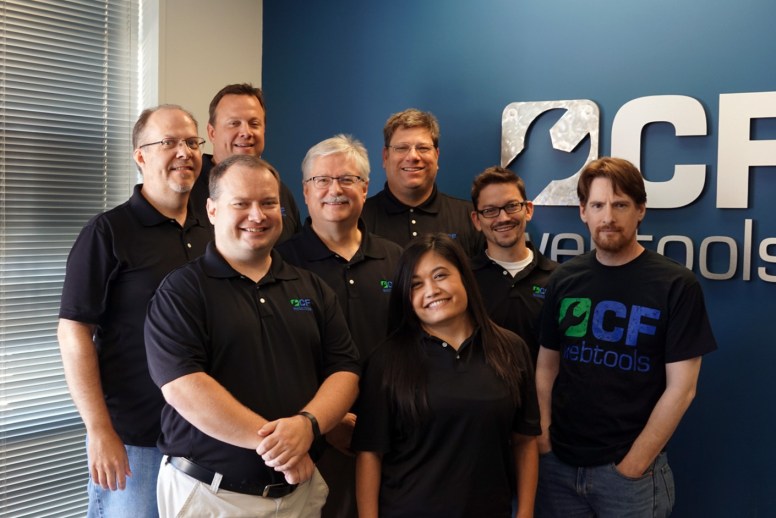
CF Webtools LogoCF Webtools, where I’ve placed my career coming up on 8 years, is seeking a talented ColdFusion developer. We’re 25 strong and are looking for #26!

You can either work remotely in the comforts of your own personal office space (AKA your spare bedroom) or enjoy your own office space at our Omaha, NE office. We keep in touch with each other day-to-day via Skype. This provides us with one-on-one, project chats and company-wide chats. Most of the time it’s text chatting, but we also use it for voice when it’s just more efficient.

CF Webtools is a great fit for me because it provides the diversity and challenges needed not to become worn out with the same task over-and-over. There are always new opportunities that arise over the years. With this also comes constant learning. Each project brings its own set of challenges.

Granted most projects are not picture perfect as they tend to build up technical debt over time; but you get the opportunity to sell your expertise to the customer giving them the best path forward fitting their needs.

Experience needed not only includes ColdFusion but SQL, SQL, SQL, web server, Windows, Linux, Mobile OS, basic networking and just a good set of troubleshooting skills.

Give Mark or Jason a call at 402-408-3733, tweet @cfwebtools or contact the business owner Mark via his blog at coldfusionmuse.com .

Omaha Staff 2015

Omaha Staff


#career, #cf-webtools, #coldfusion-2, #job, #nebraska, #omaha

Tearing Apart a $250,000 Hard Drive

I found this gem. Appears to be a 1.89GB or 3.78GB Hard Drive from 1991.

This guy tears it apart bit-by-bit and explains each piece. Pretty amazing.  His voice-over says it’s a 10MB, but the model number shows different.

Resolving VMWare Converter File I/O Error

Here at CF Webtools we’ve been shifting towards Virtual Machines to replace our dedicated “iron” as Mark Kruger likes to say. Let me say for starters that I’m very impressed with the Dell PowerEdge VRTX Shared Infrastructure Platform. There is so much back-end power in that thing we’ve been able to move our entire set of staging platforms onto one M620 Server Node along with a RAID 6 shared PERC disk array. It handles it like a champ and each virtual server is extremely fast. After about a year of testing and no real issues we’ve been able to move some of our production servers onto another server node. We’re looking forward to adding a couple more server nodes as well. Each node runs VMware ESXi HyperVisor 6.0 via RAID 1 SD cards.

In addition we’re also migrating some workstation VM’s away from Hyper-V and onto a separate Dell Server that we’ve reclaimed.

vcenterconverter61But here’s the real reason I’m writing today:

FAILED: A file I/O error occurred while accessing ”.

I get this error when using “WMware vcenter Converter Standalone 6.0.0” to convert any powered-on Windows machines onto one of the ESXi instances. I don’t get this issue when converting power-on Linux machines. Very odd and Google results of forums haven’t been very helpful. Mostly just a lot of run chkdsk and check for fully qualified domain resolutions.

I’m not going to cover Linux conversions here since they work. But basically what a powered-on Windows conversion does is it installs a helper VM on the machine to be converted. It’s run as a service and you have the option to manually uninstall when finished or let it automatically uninstall.

Something, probably this helper service, then takes a snapshot of the source system. Then the helper VM does a block-level clone for each volume it finds.

Mine always failed after the snapshot and before the clone.

What I did was used the “Export logs…” link in the converter. The line I found interesting, reading the file vmware-converter-server-1.log, was:

error vmware-converter-server[01288] [Originator@6876 sub=Ufa.HTTPService] Failed to read request; stream: <io_obj p:0x03dc40ac, h:-1, <pipe ‘\\.\pipe\vmware-converter-server-soap’>, <pipe ‘\\.\pipe\vmware-converter-server-soap’>>, error: class Vmacore::TimeoutException(Operation timed out)

After some Google searching it dawned on me that I am using two IP subnets. One for the general network and one for management. My machine runs 10.0.0.* (general) and 10.1.1.* (management) subnets. The source system has 10.0.0.* assigned to it while the destination ESXi server has 10.1.1.* assigned to it.

Because my system can communicate with both networks, everything could communicate just fine with both the source and destination machines.

However once things get rolling, the process moves from my machine to communicating between the source and destination. My machine merely monitors the progress. Which makes sense. Keep out the middle man and you have efficient network data transfer.

So the fix here was to bind a temporary management subnet address (10.1.1.*) to the source machine’s NIC. Now the helper VM is able to communicate with the destination server over that management subnet. Continue reading

#convert, #esxi, #file-io-error, #vmware, #windows

Field Guide to Clients

These can be so true… though it’s what makes our world turn. Infographic from Ciplex.

clients_infographic_ciplex1

Technical Debt In An Image

technicaldebt

source unknown

Allaire Brothers talking about ColdFusion

Dead Ringers

I ran across a post on Facebook that peaked my interest. It lists how many terms came about. I’m going to post it here to reference.

They used to use urine to tan animal skins, so families used to all pee in a pot & then once a day it was taken & Sold to the tannery…….if you had to do this to survive you were “Piss Poor
But worse than that were the really poor folk who couldn’t even afford to buy a pot……they “didn’t have a pot to piss in” & were the lowest of the low. The next time you are washing your hands and complain because the water temperature isn’t just how you like it, think about how things used to be.

Continue reading

Faux File Upload Input

The element <input type=”file”> is very ugly in most browsers and it seems that even Bootstrap didn’t put any effort into sprucing it up.

My end objective was to have a user press a rectangle box with a title inside which would open a file dialog and ultimately upload that file.

At first I thought this would be easy after some quick research in Google land. Not so.

Note: I’m using the jQuery 2.x library in my examples

<style>
	input {
		display:none;
	}
</style>

<form method="post" enctype="multipart/form-data">
	<div id="wrapper">click here to upload<br><br>
		<input type="file">
	</div>
</form>

<script>
	$('#wrapper').click(function(event){
    	$(':file').click();
	});
	
	$(':file').change( function() {
		$('form').submit();
	});
</script>

At first I thought it would be as easy as 1) hiding the input 2) watching the click event on the container 3) trigger the input’s click event and 4) submit the form.

But what I found out was that the event listener kept firing infinitely until the browser aborted with a “Uncaught RangeError: Maximum call stack size exceeded” error in the console. Though honestly I don’t completely understand what’s going on here, the click event by my mouse bubbles up to the child input element.

To resolve that issue I started looking for the event that was not fired by the input element:

<script>
	$('#wrapper').click(function(event){
		if( !$(event.target).is(':file') ) {
	    	$(':file').click();
	    }
	});
	
	$(':file').change( function() {
		$('form').submit();
	});
</script>

At this point @chrish on CFML Slack was helping me out and also offered up a solution were as now we are stopping propagation for the input element.

<script>
	$('#wrapper > :file').click(function(event) { event.stopPropagation(); });
	$('#wrapper').click(function(event){
    	$(':file').click();
    }
	
	$(':file').change( function() {
		$('form').submit();
	});
</script>

I ended up sticking with the first solution incorporating the “if” statement until Jessica Kennedy reminded me of a simple solution using the label element. Because this simplifies things (AKA less likely to break) I’m now sticking with this solution. Normally a label will focus on the input field when clicked on. But in this case it fires off an event to open the file dialog. I’ve tested this in Chrome, FireFox and IE 9+. I’m pretty sure the label element has some limitations what you can stick in it, so this may not always work for you. But in my case I was able to apply the Bootstrap widget classes (not seen in this example) and it worked as expected.

<style>
	input {
		display:none;
	}
</style>

<form method="post" enctype="multipart/form-data">
	<label id="wrapper">click here to upload<br><br>
		<input type="file">
	</label>
</form>

<script>
	$(':file').change( function() {
		$('form').submit();
	});
</script>

#file, #html, #upload