Troubleshooting High SQL Server CPU on Amazon RDS

Today’s scenario consists of a db.m6i.2xlarge Amazon RDS instance running Microsoft SQL Server Web Edition. A newer “greenfield” web application has a larger number of users hitting it during work hours.

An alert indicated that the server was nearing its CPU capacity. To start our investigation, we examine the instance’s Monitoring tab and see that the “CPUUtilization” metric indeed indicates an issue. This chart shows a server restart around the 17:35 mark to free up some resources. However, it quickly rockets back up.

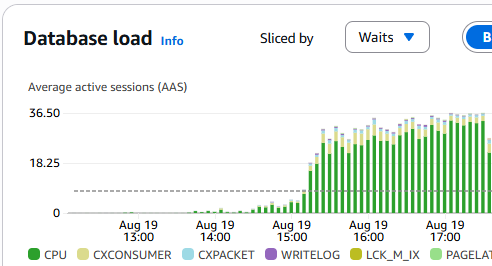
Next, we examine our Database Insights (which you will need to activate in advance). Here we see CPU waits exceeding our max vCPU threshold, indicating an issue.
We then scroll down to the “Top SQL” tab and see that our most considerable wait (taking up 5.44% of the database load at the time of this screenshot, a few hours after the fix) is our target SQL query.

One of the items that we double-checked and found as an oversight was that the max degrees of parallelism (MAXDOP) parameter was set to 0 (unlimited). When using OLTP, or Online Transaction Processing, it’s best to set it to 1, effectively disabling parallelism. It ensures that no single query can consume too many resources, leaving processor cores available for other user requests. This improves overall system responsiveness and throughput.

However, after setting this to 1 and rebooting the instance, we found the primary issue remained. MAXDOP issues tend to be reflected as “CXPACKET” waits instead of “CPU” waits, and you can see all the “CXPACKET” waits, shown in light blue in the screenshot chart below, ceased at 18:30 when the parameter was changed from 0 to 1 and the server was emergency restarted.

During troubleshooting, developers optimized the query to join on a primary ID and then do a fuzzy search. Per the developer, the previous query was not utilizing the indexes properly.

At about 19:30 on the chart, the optimized query was pushed to production. The SQL Server was then emergency restarted to clear the hanging queries. You can see that the issue was then resolved with a practical database load and wait metric.

Random monitoring for a few hours confirmed that the fixes have resolved the issue.

In conclusion, utilize AWS RDS’s database insights and CloudWatch monitoring tools to look for clues. Often, on an OLTP stack, database waits become an issue that manifests as slow-loading web pages. Use application performance monitors (APM) such as FusionReactor for ColdFusion and Lucee servers to help you narrow down troublesome issues.

As a side note, while restarting production databases during normal hours is never great, you have to weigh the benefits. In this case a minute or two of downtime won over endless lag. Credit goes to Amazon RDS for a very speedy server restart. We were back up within a minute or two at most after hitting restart!

#aws, #database, #microsoft, #rds, #sql

Copying MS SQL 2016 Database on AWS RDS

A common task on a SQL Server might be to copy a database into a new database. This could be on the same server or a different server.

On Amazon Web Service’s (AWS) Relational Database Service (RDS) this task becomes a little more complex to plan and execute. There are a few reasons for this:

  1. You don’t have access to the local file system outside of creating a database in the defaulted path.
  2. You do not have the needed permissions to run “Copy Database Wizard”
  3. Doing a “native” backup/restore using S3 would create a duplicate “family_guid” which is impossible to restore on your RDS instance without deleting the source database.

If you use MS SQL 2016 you can export/import a “Data-tier Application” which is stored as a “.bacpac” file. This is a schema and data native format package (not human readable). In reality it’s a .zip file, so if you open it in something like 7-Zip you can see the package contents. This package is going to be lacking items such as the physical index (the index configuration is intact) and the transaction logs. Therefore it tends to be smaller than an actual native backup.

Keep in mind all data is transmitted from the source machine (AWS RDS) to your workstation. If this is a larger database, you may wish to consider doing this from an EC2 instance to create a faster connection, provide for a larger drive workspace and potentially save on network costs.

Here are the steps to take to backup and then restore a “.bacpac” file. This example is done using AWS RDS, but the same steps would be taken for about any environment including local.

  1. Open Microsoft SQL Server Managment Studio (MSSMS) 2016 or better and connect to your database server.
  2. Right click the source database, go to tasks and “Export Data-tier Application”.
    1
  3. Press “Next” to go to “Export Settings”. Enter a path on your local workstation to save the package to and press “Next”.
    2
  4. After you press “Finish”, it will then begin the copy process from the source machine to your local machine.
    3
  5. If you wish to import the database to another server, connect to it now via the MSSMS.
  6. Right-click the “Databases” group object and select “Import Data-tier Application”. Press “Next”.
    4
  7. Specify the path on your local machine to the “.bacpac” file being imported. Then press “Next”.
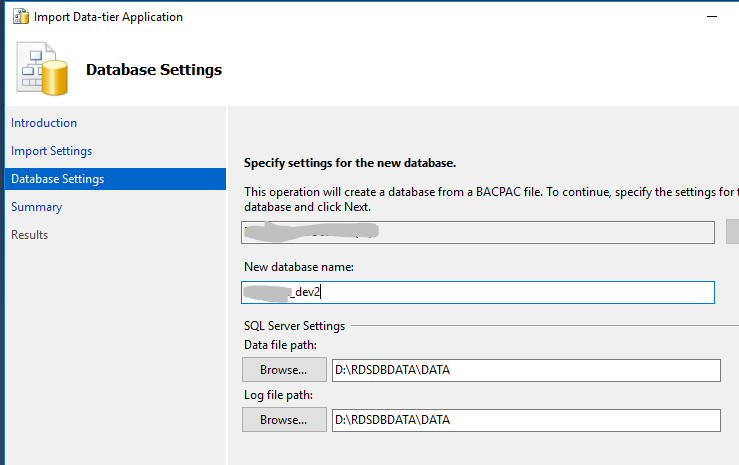
  8. Specify a new database name. It can not be the name of an existing database. Press “Next” and then “Finish”.
    5
  9. The new database will be created and imported.
    6

Update 10/29/2018
It appears the “family_guid” issue is no longer an issue. I have not verified it as of yet. See https://aws.amazon.com/about-aws/whats-new/2018/10/amazon-rds-for-sql-server-enhances-backup-and-restore-capabilities/

#aws, #export, #import, #microsoft, #rds, #sql